
To start a new consignment, select Quick Add, Consignment
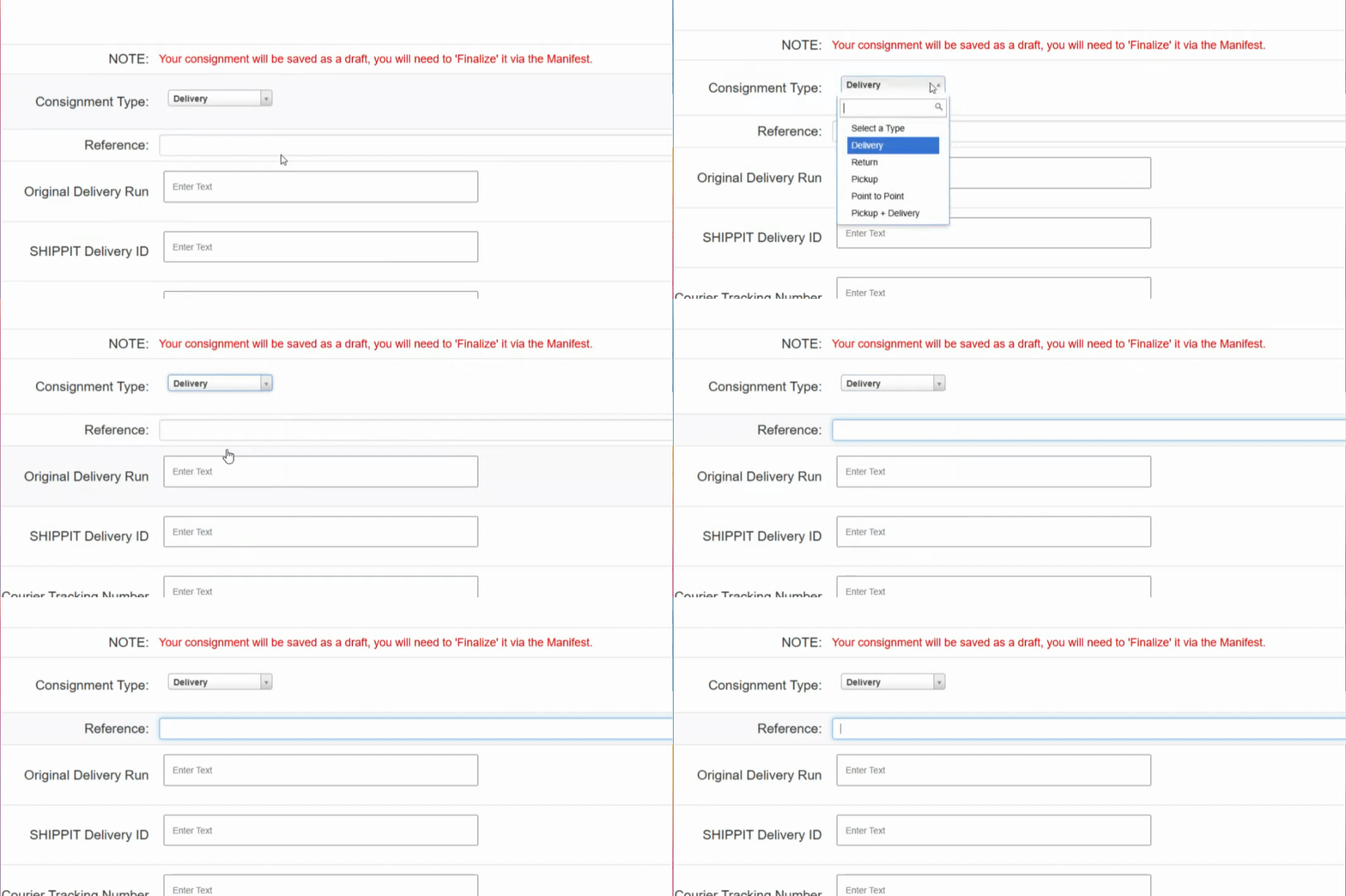
Step 1: Choose Delivery Type + Reference
Select the Type - Delivery and enter a reference. If you require us to collect items for you from a venue select Pickup.
Enter your reference - It needs to be a unique invoice or job number.
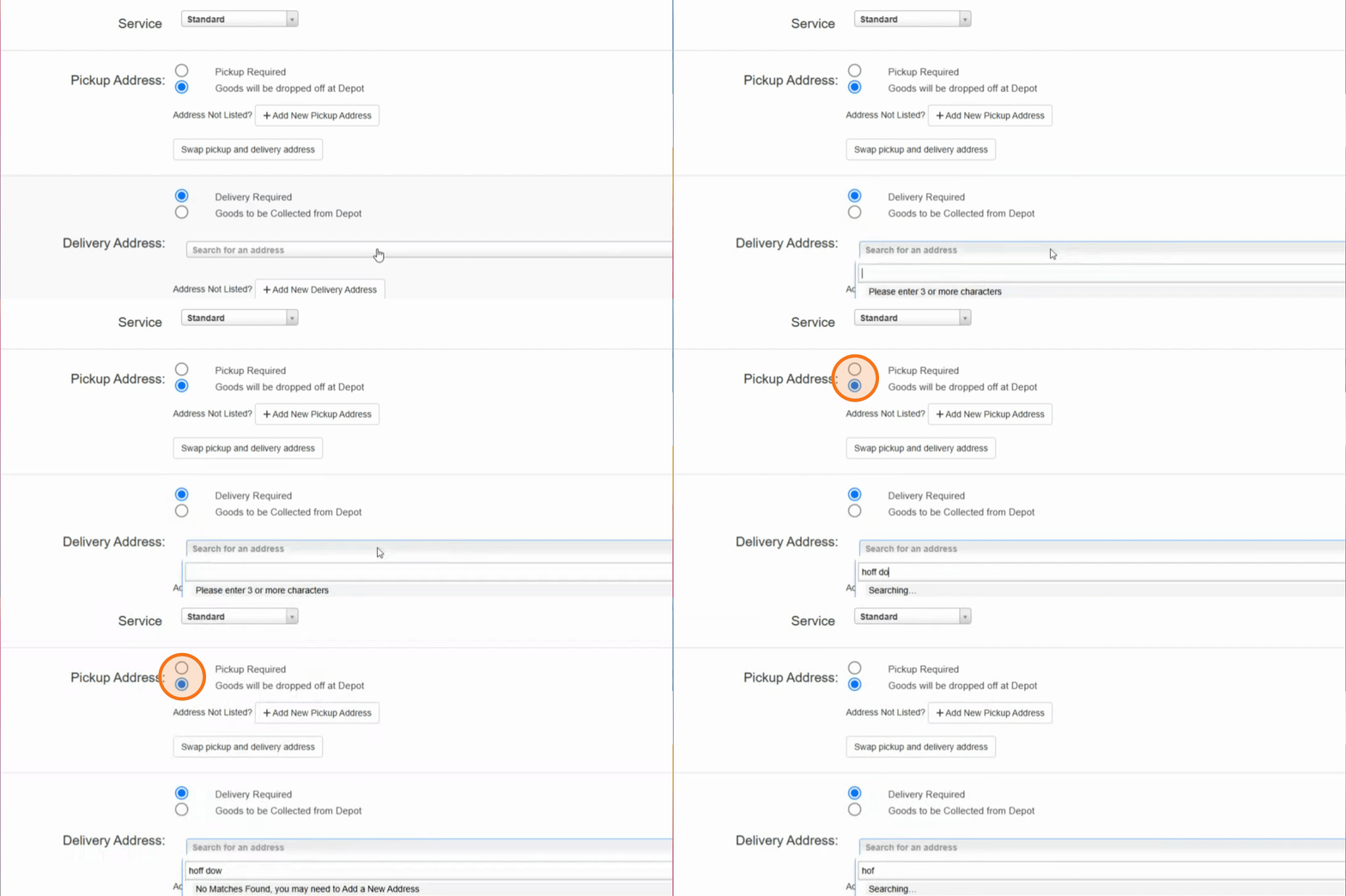
Step 2: Specify Pickup or Drop-off
If you need us to collect your items, click Pickup required and type in the pickup address. If you will drop off the goods, click Goods will be dropped off at the depot.
For delivery, enter the delivery address.
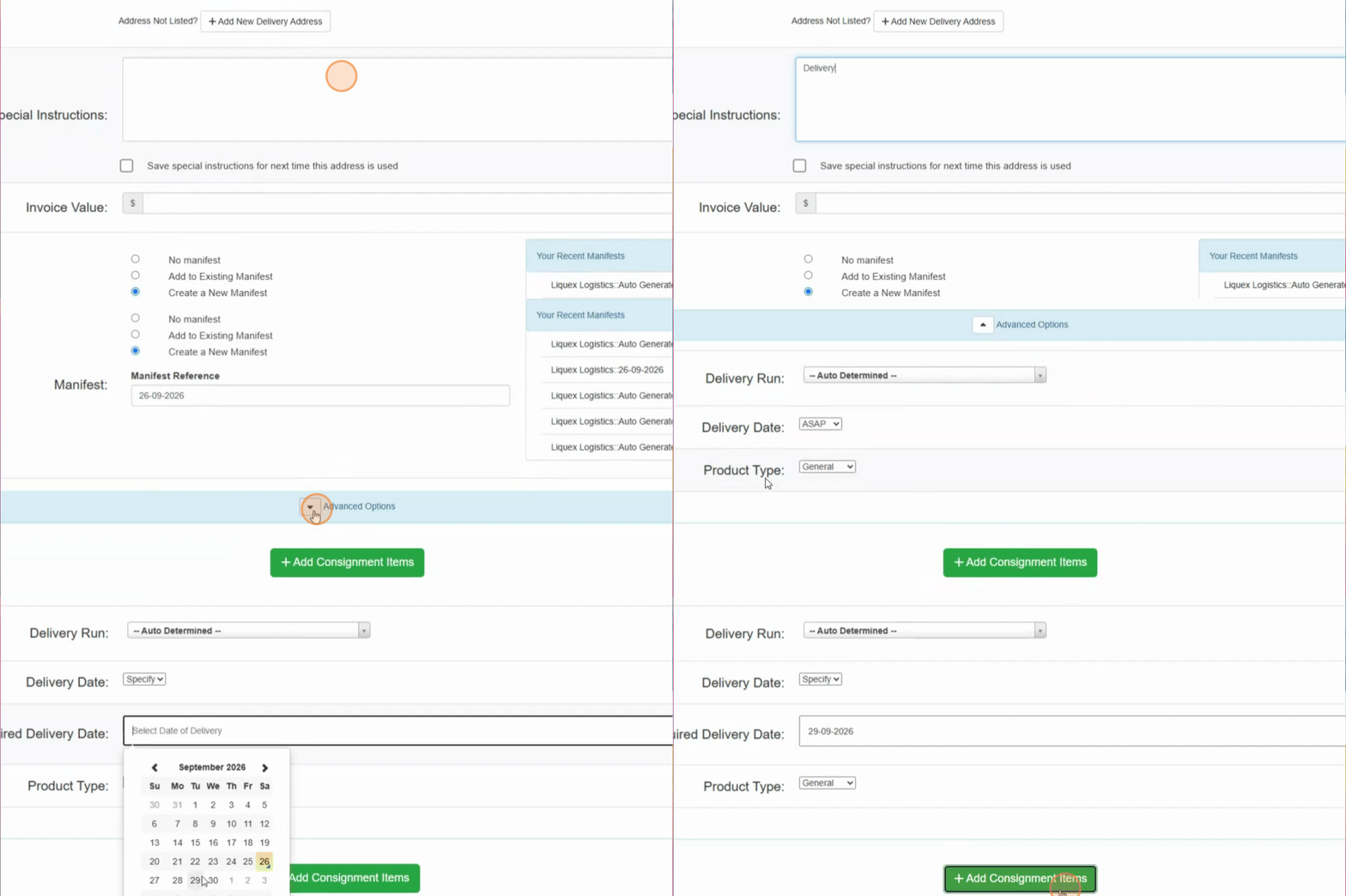
Step 3: Add Delivery Instructions and Date
If you have any delivery instructions, enter them.
You can select a specific delivery date if needed in Advanced Options - This can be left blank and it will be allocated to the next available schedule to that area.
Click Add Consignment items at the bottom of the screen.
Step 4: Add Consignment Items
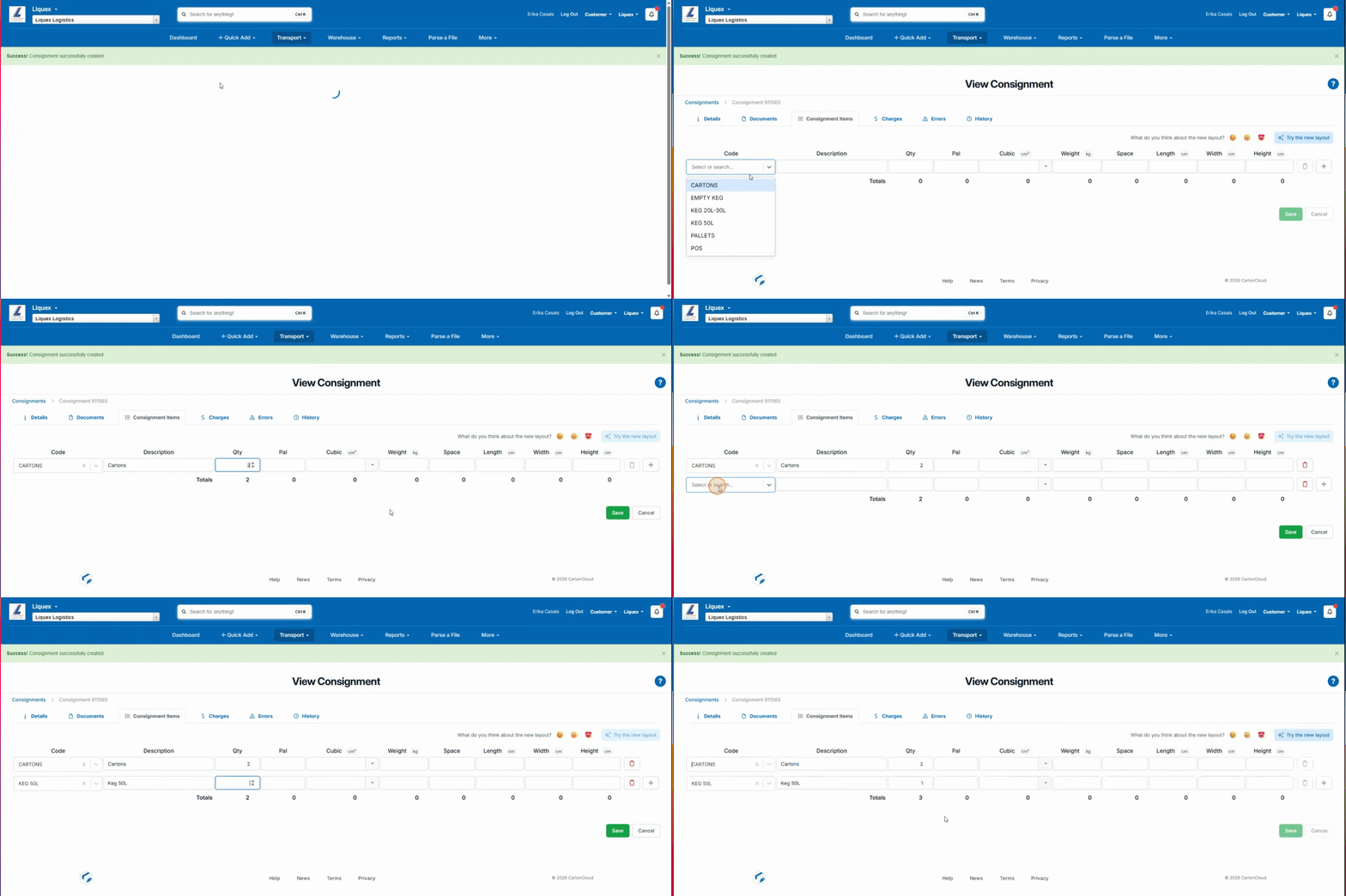
Select the item type you are shipping in the drop down menu and add the quantity
To add another line, click the plus button.
When you have finished entering all items, click Save.
Step 5: Print Labels
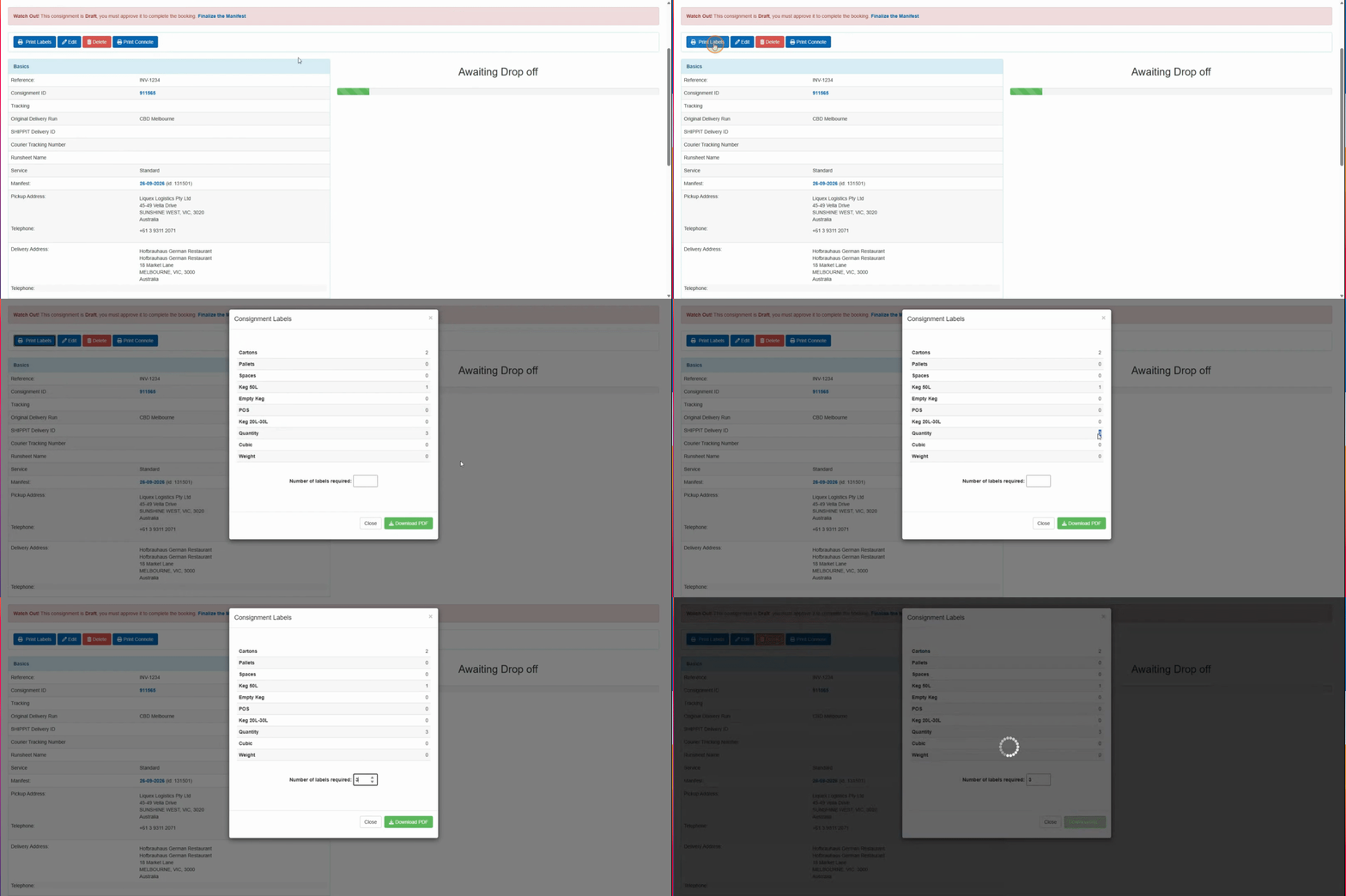
After saving, click Print Labels.
Check the total item quantity and type in the number into Number of Labels required - Each individual item requires a label
Download the PDF to get a copy of the labels, then print and attach them to your items.
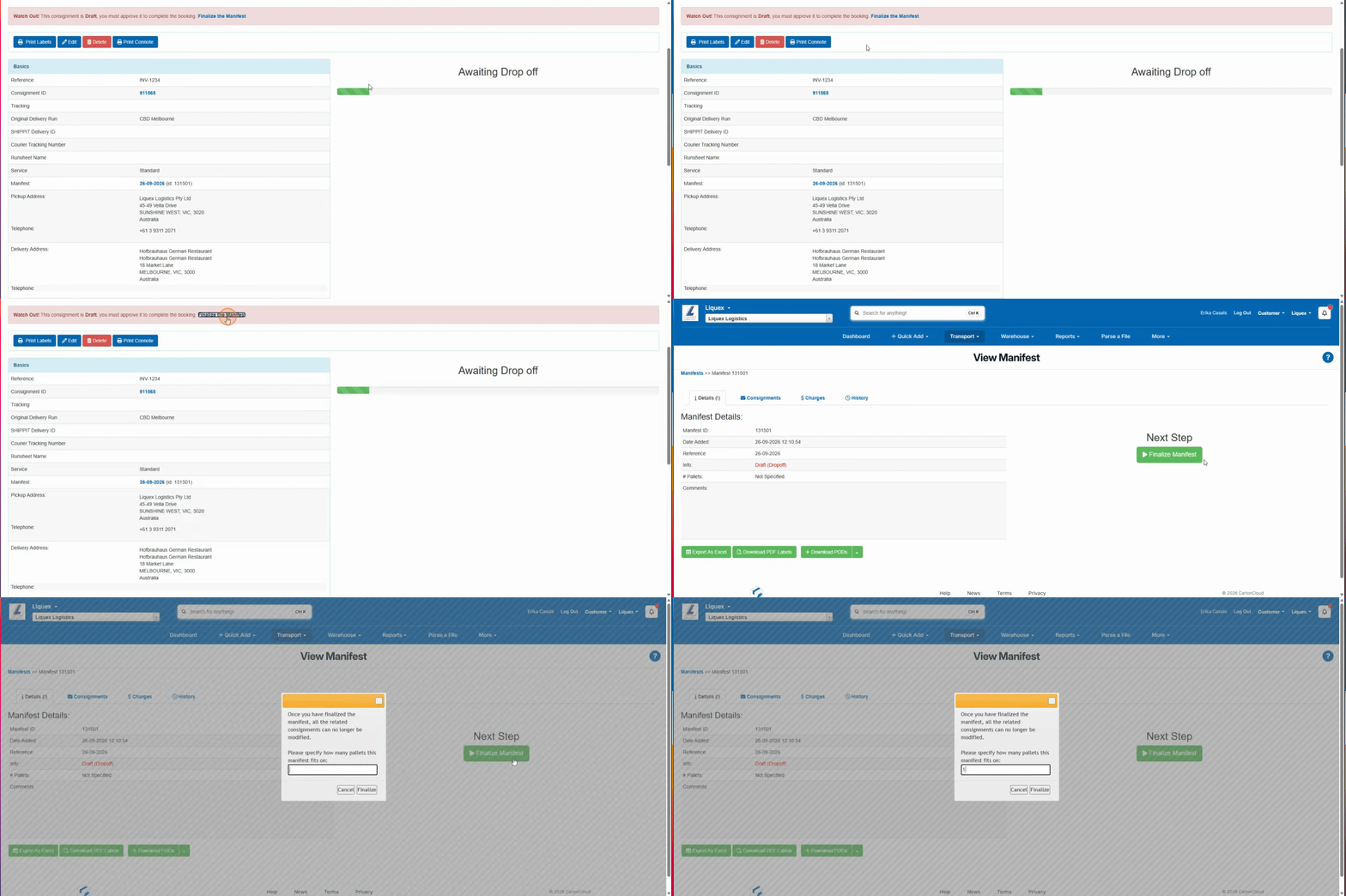
Step 7: Finalize the Manifest
Repeat the above steps to add additional consignments to your manifest.
When ready, Finalize the Manifest to book the consignment so it can be allocated.
Enter the number of pallets and click Finalize.